How to Add a Booking Link to Your Google Profile
How to add a booking link to your clinic's Google Business Profile: Google's documented steps, the alternate Contact-tab path, preferred links, and third-party cleanup.
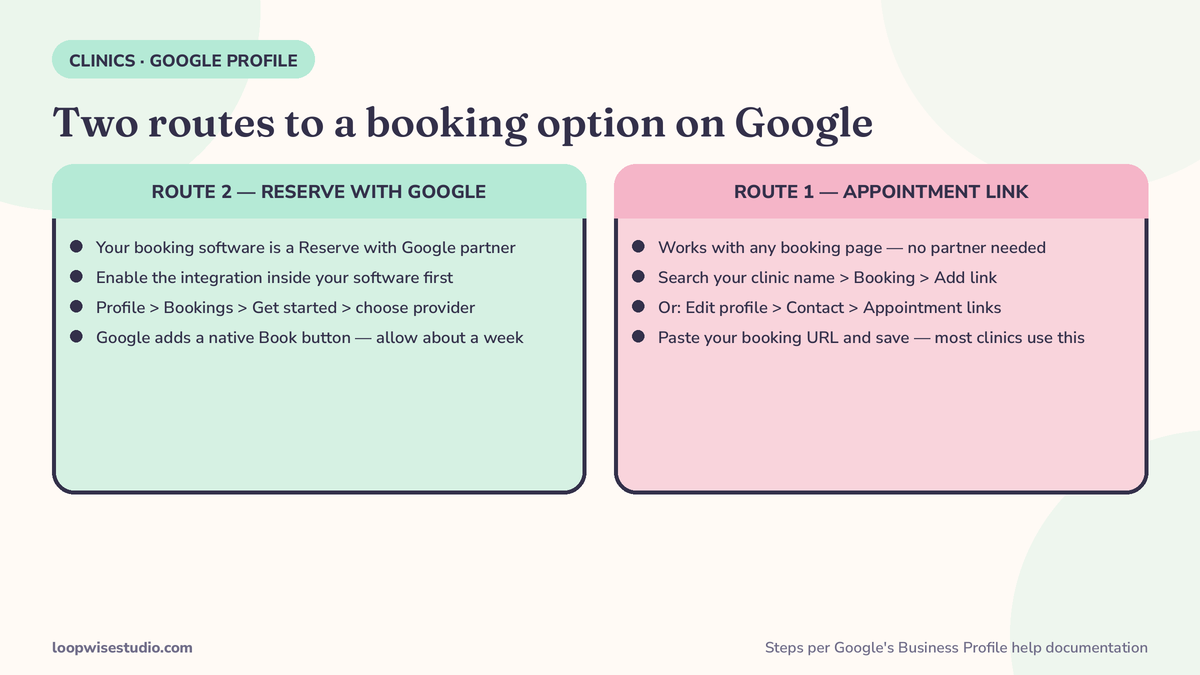
Sign in to the Google account that manages your clinic’s profile, search your clinic’s name, and select Booking — or Edit profile, then Appointment links — choose Add link, paste your booking page URL and save. If your booking software is a Reserve with Google partner, use Bookings and Get started instead and Google adds a native Book button, usually within about a week. Most clinics will use the appointment link: it works with any booking page and needs no partner.
This is a ten-minute job that a surprising number of clinics have never done. A patient searches “dentist near me,” your profile appears with your hours, your reviews and your phone number — and no way to book. So they call, or they tap the next clinic, whose profile has a button.
This tutorial follows Google’s own help documentation, checked for this article, and flags the one place where the steps you will see on your screen may differ from Google’s page. It is written for clinics, so the examples are consults, hygiene visits and follow-ups, not tables for two. The link is one part of the discovery picture this cluster covers — the same patients often arrive from social first, which is why the guide to replying to Instagram DM leads faster is this page’s sibling, not a detour.
The two ways a booking option appears on Google — and which one your clinic can actually use
Every guide on this search result presents two routes as a free choice. For most clinics, it isn’t one.
Route 1: the appointment link. You paste a URL into your profile yourself. It can point to any booking page on the internet — yours, your software’s, anyone’s. No partner status, no approval programme, no per-booking fee from Google. Google documents this as a link category on your profile: a Business Profile can hold a single link of some types (a menu, or a services list) and up to 10 links per category for transaction types — and “Book an appointment” is one of those categories (Google’s help page, “Manage your local business links,” read in full for this article).
Route 2: the native Book button, via Reserve with Google. If your booking software is a Reserve with Google partner — the large platforms are; most clinic and practice-management tools are not — you connect the integration and Google shows a real Book button that books inside Google’s flow, with live availability.
So the decision is one question:
Is your booking tool on Google's Reserve with Google partner list?
  YES -> Route 2 is open to you (and Route 1 still works as a backup)
  NO  -> Route 1. This is most clinics. Do it today; it takes ten minutes.
Do not let route envy delay you. A working appointment link this week beats a Book button you may never be eligible for.
Method 1: add your appointment link — Google’s documented steps, plus the alternate path
Google’s current help page documents the transaction-type flow. Follow it first.
On desktop, via Google Search:
- Sign in to the Google account that owns or manages the clinic’s profile.
- Search your clinic’s exact name. Your admin panel appears above the results.
- Select Booking (Google groups link types: Booking, Food ordering, Pickup and delivery — yours is Booking).
- Select Add link.
- Paste your booking page URL. Use the full address, starting with https.
- Save.
On mobile, via Google Maps: open Maps signed in to the same account, find your clinic, select Edit profile, choose the transaction type, then Add link, paste, save.
The alternate path you may see instead
Here is the discrepancy this article promised to flag. Google’s current links page describes the flow above. But Breely’s guide, Xolapp’s guide and gtstu’s guide all describe a second surface: Edit profile, then Business information, then Contact, then Appointment links. Both paths exist in the wild — Google’s interface varies by account and version — so if Booking doesn’t appear where the steps above put it, use the Contact-tab path and paste the same URL there. What you must not do is conclude the feature doesn’t exist because your screen shows the other layout. It does. It’s just wearing the other door.
Whichever path you took, you can add more than one link — up to 10 in the category — so a clinic can link a new-patient consult page and a hygiene booking page separately, if they genuinely are separate pages.
Method 2: the native Book button through a Reserve with Google provider
If your software is a partner, the route runs through the vendor as much as through Google:
- Inside your booking software, find and enable its Google or Reserve with Google integration first. Xolapp’s guide is blunt about the order: the integration is switched on in the platform before Google can use it.
- In your profile, go to Bookings, then Get started, and choose your provider from the list.
- Confirm the connection, and check which locations and services it covers.
- Wait for the button. Xolapp, citing Google’s help documentation, puts it at typically within several days to about a week of connecting — Zoho’s guide says the same. Budget a week, not an afternoon.
Two costs to check before you choose this route: some providers charge per booking or monthly for the Google integration, and some gate it behind a higher plan tier (Xolapp documents both). A “free” Book button on a tier you don’t hold is not free.
Set your preferred link — and remove the third-party links you never added
Two profile chores that no generic guide bothers with, and both are in Google’s documentation.
Preferred link. If your profile holds several booking links, Google lets you set one as preferred. It appears at the top, labelled “Business preferred.” Set it to your main new-patient booking page. Path: Booking, then Set preferred link, choose, Save.
Third-party links. Booking links can appear on your profile that you never added — placed there by partners or automated data feeds. For a clinic, that often means an old directory or a previous software provider still taking “your” Google bookings, sometimes into a diary nobody checks. Google’s rule, from its help page: you request removal through the provider, and the provider must remove a third-party link within 5 days of your request. If they don’t, there is a violation-report route. And if you want ordering links gone entirely, turning off “Accept orders on your profile” hides them all.
While you’re in there, audit the whole profile the way a franchise owner auditing one location would — the checklist in how a med spa franchise owner gets more bookings at a single location starts with exactly this Google surface.
The copy-paste asset: the ten-minute clinic checklist
[ ] Signed in with the account that manages the profile
[ ] Route decided: partner (Book button) or manual (appointment link)
[ ] Booking URL copied exactly, https, opens on a phone with no login
[ ] Link added via Booking -> Add link (or Edit profile -> Contact -> Appointment links)
[ ] Preferred link set to the new-patient booking page
[ ] Every other booking link on the profile accounted for — third-party
    links I didn't add have a removal request sent (provider has 5 days)
[ ] Profile checked while signed OUT, the way a patient sees it
[ ] Booking completed as a test patient, start to finish, on a phone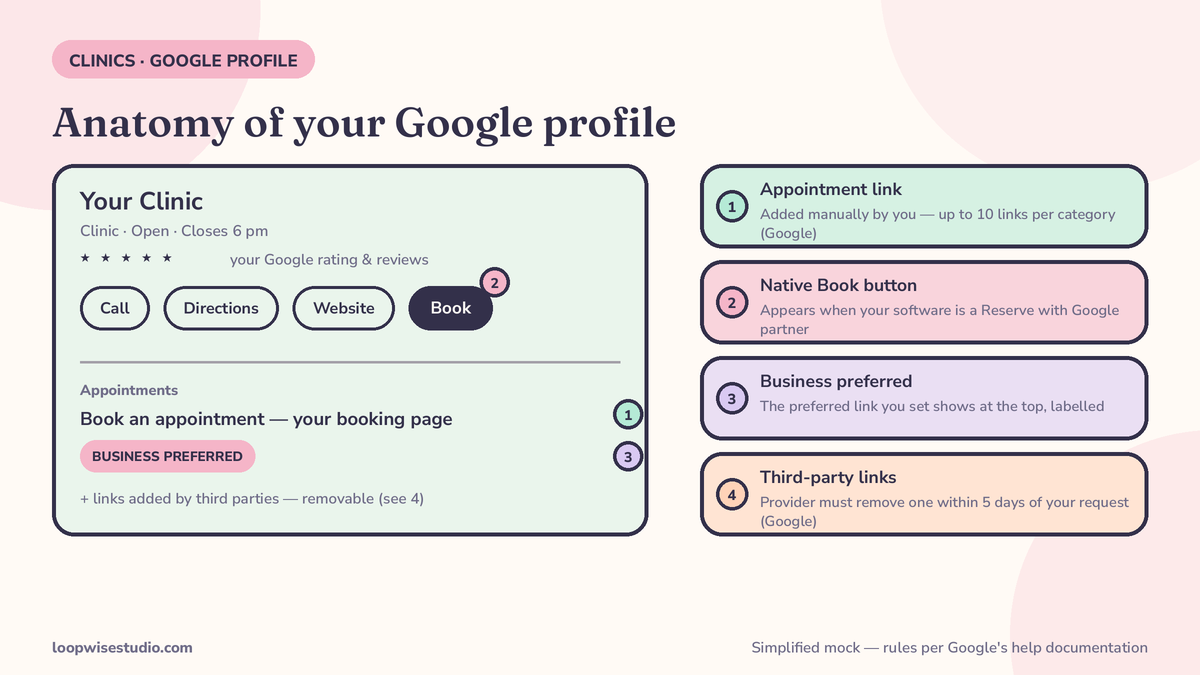
What your link should point to: the page that decides whether this worked
The link is plumbing. The page it lands on is the business.
Do not point it at your homepage. The patient has already decided to book; the homepage makes them decide again, then hunt for the booking they already chose. Point it at the fastest route to a confirmed slot for your most-booked service: a page that loads quickly on a phone, shows real times, asks for the minimum, and confirms instantly — followed by a text or WhatsApp confirmation and a reminder before the visit.
Good targets, in order:
- A service-specific booking page — “Book a new-patient exam,” one job, no menu of everything you do.
- Your booking system’s direct link for that service, if it opens without an account wall.
- Your general booking page, if one page is genuinely all you have.
Track it properly: add UTM parameters to the URL you paste, the way Breely’s guide demonstrates — ?utm_source=google&utm_medium=organic&utm_campaign=gbp_booking — so your analytics can tell Google-profile bookings from everything else. Then you will know, in numbers, what this ten minutes bought you.
If your honest answer is “our booking page is a phone number and a contact form” — that is the gap the audit exists for. A profile link pointing at a page that cannot book is a funnel with the bottom missing. The clinics that fix both ends are the ones this site’s clinic visitor-to-booking conversion guide was written for.
Ready to have the whole front door checked — profile, link, and the page behind it? get a free audit and we’ll test-book your clinic the way a patient does.
How long it takes to appear, and what to check when it doesn’t
Timing claims on this search result conflict, so here is the reconciliation, with sources:
- Manual appointment link. This is a profile edit. gtstu, attributing the timing to Google’s help documentation, puts typical edit review at about 10 minutes, with some edits taking up to 30 days — treat that as Google’s general edit-review guidance quoted secondhand, not a promise about links. Breely says appointment links usually update within minutes and to allow up to 24 hours. Plan on: visible quickly, judge it after a day.
- Native Book button. Slower, because the provider’s data has to propagate: Xolapp and Zoho both say about a week; Breely’s 24 to 48 hours is the optimistic end. Plan on a week.
They conflict because they are measuring different things — a link edit versus a partner integration. Judge each by its own clock.
When it doesn’t appear, check in this order: you are signed in as an owner or manager of the right profile (not a second listing); the URL is valid, https, and loads; the edit wasn’t rejected or rolled into a duplicate profile; for the Book button, the integration is enabled inside the provider first and your category and country support it; and for multi-location clinics, you edited the right location — links cannot be bulk-added, because Google documents that they are not available via the Business Profile API or spreadsheet upload. Manual, per location, every time.
The bottom line
Ten minutes: add the link, set the preferred one, clean up the links you never added, and test it signed out on your phone.
An hour more: point it at a booking page that deserves the click, tag it with UTMs, and check it again in a week.
That is the highest-return hour most clinic profiles will ever get — a patient who was ready to book, given a way to book. If the page behind the link is what stopped you, get a free audit and we’ll show you what it should look like on your own services.
FAQs
Does adding a booking link to Google cost anything?
The manual appointment link costs nothing and needs no partner or programme. The native Book button route can carry costs on the software side: some Reserve with Google providers charge per booking or monthly for the integration, and some gate it behind higher plan tiers (documented in Xolapp’s guide). Google itself documents no charge for holding links on your profile.
How many booking links can a clinic have?
Up to 10 links per category, per Google’s help documentation — so separate links for a consult page and a hygiene page are fine. With several links present, set one as preferred so it shows at the top, labelled “Business preferred,” and make it your main new-patient route.
A booking link appeared on our profile that we never added. How do we remove it?
Third-party links can be added by partners or automated feeds. Google’s documented route: request removal through the provider who placed it, and the provider must remove it within 5 days of the request. If they don’t, use Google’s violation-report route. Turning off “Accept orders on your profile” hides all ordering links in the meantime.
Why can’t I find the Appointment links option?
Because Google shows two interface layouts. Its current help page documents Search, then Booking, then Add link (or Maps, then Edit profile, then the transaction type). Many accounts instead show Edit profile, then Business information, then Contact, then Appointment links — the path Breely, Xolapp and gtstu describe. Try the other layout before concluding anything is missing.
Should the link go to our homepage or a booking page?
A booking page — ideally the specific service the patient is most likely booking, loading fast on a phone with no login wall. The homepage repeats decisions the patient already made. Add UTM parameters to the pasted URL so you can measure what the profile sends you.
We have three locations. Can we add links in bulk?
No. Google documents that profile links are not available through the Business Profile API or spreadsheet upload — each location’s links are added and managed manually, in Search or Maps. Put it on each location’s monthly checklist, and set the preferred link per location to that location’s own booking page.